10 Essential Freelancing Tools Compared: Which Ones Truly Deliver for Your Business?
Choosing the right tools for your freelancing business can feel overwhelming when every platform promises to solve all your problems. This list takes a practical, comparison-focused look at ten essential tools that freelancers depend on. Instead of just listing features, we’ll examine what each tool does well, where it falls short, and how it stacks up against alternatives. Whether you’re comparing project management systems or invoicing software, this analysis will help you make informed decisions about where to invest your time and money.
- Legiit: Freelance Marketplace Versus Traditional Client Hunting

Legiit offers freelancers a platform to sell services directly to clients who are already looking to buy. Compared to cold outreach or relying solely on referrals, Legiit reduces the time you spend hunting for work and lets you focus on delivery. The main advantage over competitors like Fiverr is the lower commission structure and a more business-focused client base that understands the value of quality work.
The trade-off is that you need to invest effort in building your profile and gathering reviews before you see consistent results. Unlike agencies that hand you clients, Legiit requires you to market yourself within the platform. However, compared to building your own website from scratch and driving traffic to it, Legiit gives you immediate access to buyers actively searching for services. For freelancers weighing marketplace options against going solo, Legiit strikes a practical balance between effort and reward.
- Notion Versus Trello: Project Management for Solo Operators
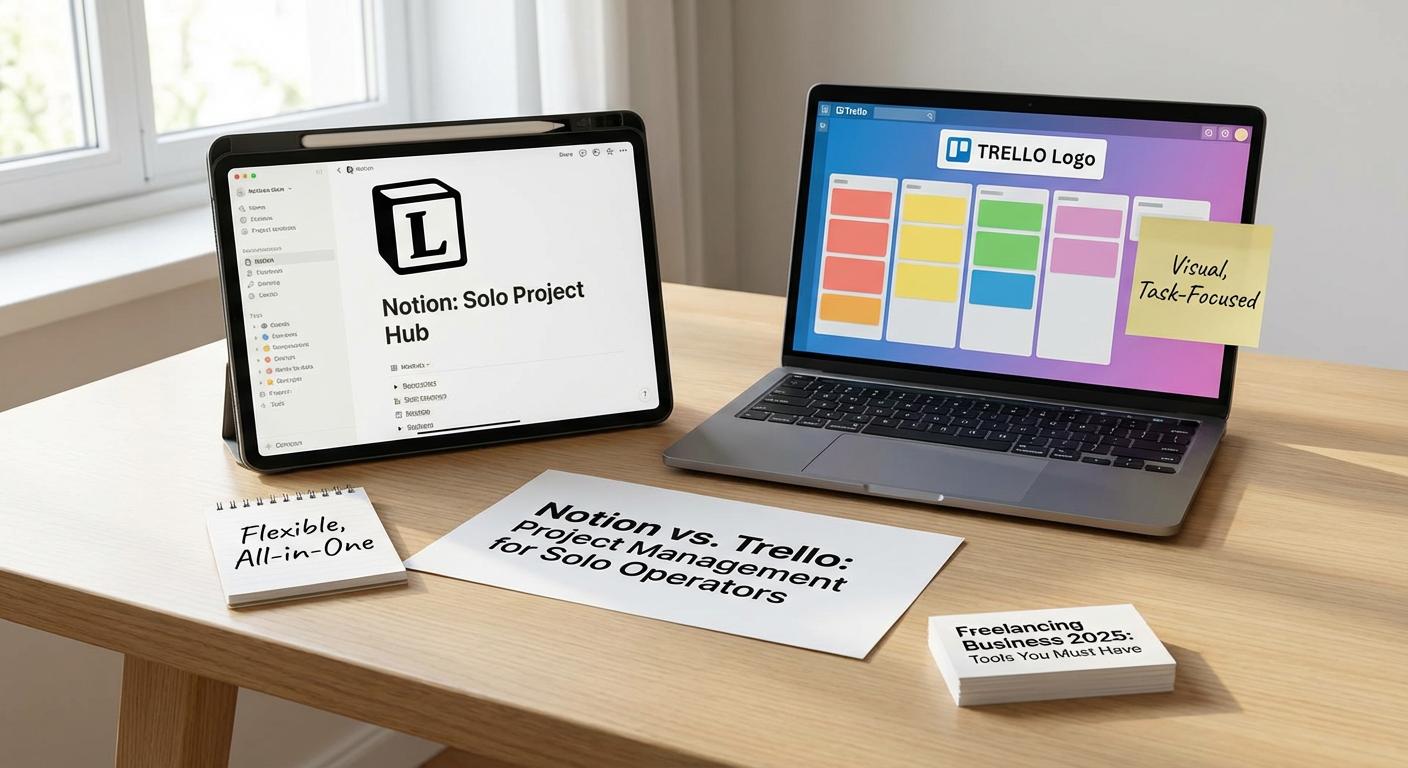
Notion and Trello represent two different philosophies in project management. Trello offers a simple, visual board system that’s fast to set up and easy to understand. It works well if you need basic task tracking without much complexity. Notion, on the other hand, is a database-driven workspace that can handle notes, wikis, calendars, and tasks all in one place.
The advantage of Notion is its flexibility. You can customize it to match exactly how you work, creating templates for client projects, content calendars, or resource libraries. The downside is the learning curve. New users often find Notion overwhelming compared to Trello’s straightforward drag-and-drop interface. Trello wins on speed and simplicity, while Notion wins if you want a single system to replace multiple apps. If you manage complex projects with lots of documentation, Notion is worth the time investment. If you just need to move tasks across columns, Trello gets you there faster.
- FreshBooks Versus Wave: Invoicing and Accounting Trade-Offs
FreshBooks and Wave both handle invoicing and basic accounting for freelancers, but they target different priorities. FreshBooks is a paid service with polished invoicing templates, time tracking, and expense management. It integrates smoothly with payment processors and sends automatic reminders to late-paying clients. Wave is free for invoicing and accounting, making it attractive if you’re just starting out or operating on tight margins.
The trade-off with Wave is that it charges transaction fees when clients pay through the platform, while FreshBooks includes payment processing as part of its subscription. FreshBooks also offers better customer support and more reporting options. Wave is sufficient if your needs are basic and you don’t mind fewer features. FreshBooks makes sense when you’re billing multiple clients regularly and want professional tools that save time. Compare your monthly transaction volume against subscription costs to see which pricing model works better for your situation.
- Grammarly Premium Versus ProWritingAid: Editing Assistance Compared
Both Grammarly Premium and ProWritingAid help freelancers who write content improve their work, but they approach editing differently. Grammarly focuses on real-time corrections with a clean interface and browser extensions that work almost everywhere. It catches grammar mistakes, suggests tone adjustments, and checks for clarity. ProWritingAid offers deeper analysis with detailed reports on sentence structure, readability, overused words, and writing style.
Grammarly is faster and easier to use during the writing process. ProWritingAid requires more active engagement with its reports but gives you more control over your editing decisions. Grammarly costs more per month but integrates better with email and social media. ProWritingAid is cheaper annually and better for long-form content like ebooks or reports. If you write quickly and want instant fixes, Grammarly keeps your flow going. If you want to improve your writing skills over time and don’t mind pausing to review reports, ProWritingAid offers better value and deeper insights.
- Calendly Versus Google Calendar: Scheduling Efficiency Head-to-Head
Google Calendar is free and does the basic job of tracking your schedule and sending meeting links. Calendly builds on that foundation by automating the back-and-forth of finding meeting times. Instead of emailing five different time options to a client, you send one Calendly link and they pick a slot that works for both of you.
The benefit of Calendly is time saved and a more professional client experience. You can set buffer times between meetings, create different meeting types with different durations, and integrate with Zoom or Google Meet automatically. The downside is the cost. The free version of Calendly limits you to one meeting type, while paid plans start at fifteen dollars monthly. Google Calendar costs nothing but requires manual coordination. If you book more than a few meetings per week, Calendly pays for itself in time saved. If your schedule is simple or you rarely meet with clients, Google Calendar is perfectly adequate.
- Canva Pro Versus Adobe Creative Cloud: Design Power Versus Simplicity
Canva Pro and Adobe Creative Cloud serve different levels of design needs. Canva is built for non-designers who need to create social media graphics, presentations, and marketing materials quickly. It uses templates and drag-and-drop tools that anyone can learn in minutes. Adobe Creative Cloud includes Photoshop, Illustrator, and InDesign, which are professional tools with steep learning curves but far more capability.
Canva Pro costs about thirteen dollars monthly and gives you access to millions of templates, stock photos, and brand kit features. Adobe Creative Cloud starts around fifty dollars monthly for the full suite. If you’re a freelance writer or consultant who occasionally needs a nice graphic, Canva Pro is more than enough and much easier to learn. If you’re a designer or work with clients who need print-ready files and advanced editing, Adobe is the industry standard. The quality ceiling is much higher with Adobe, but most freelancers hit that ceiling rarely enough that Canva’s simplicity and speed make it the better choice.
- LastPass Versus 1Password: Password Management Face-Off
Managing passwords securely is critical when you’re handling client accounts and sensitive business data. LastPass and 1Password are the two most popular password managers, and both encrypt your passwords and auto-fill login forms. LastPass offers a free tier for individual users, while 1Password requires a subscription from the start.
1Password has a cleaner interface and better family-sharing options if you want to share certain logins with contractors or team members. LastPass has had some security incidents in the past, which makes some users cautious, though they’ve improved their infrastructure. 1Password costs about three dollars monthly for individuals, and LastPass Premium is similar in price. The free version of LastPass works well enough for solo freelancers who don’t need advanced features. If you prioritize interface design and want a tool that feels more polished, 1Password is worth the cost. Both are dramatically better than reusing passwords or storing them in a spreadsheet, so the choice matters less than simply using one of them.
- Zoom Versus Google Meet: Video Conferencing for Client Calls
Zoom and Google Meet both handle video calls, but they differ in pricing and features. Google Meet is free with a Google account and integrates directly with Google Calendar. Meetings can run up to an hour on the free plan, and the quality is reliable. Zoom’s free plan also allows meetings up to forty minutes with three or more participants, but one-on-one calls are unlimited.
Zoom offers better features for webinars and larger meetings, including breakout rooms and more control over participant permissions. Google Meet is simpler and works well if your clients already use Google Workspace. Zoom’s paid plans start at fifteen dollars monthly and remove time limits, while Google Meet’s paid features come with a full Workspace subscription. If you run workshops or group sessions, Zoom’s extra features matter. If you mainly do one-on-one client calls, both free versions work fine, and you should choose based on what your clients prefer. Most people already have Zoom installed, which reduces friction when starting meetings.
- Slack Versus Microsoft Teams: Communication Platforms Reviewed
Slack and Microsoft Teams organize client communication and internal messages better than email threads. Slack is known for its clean design, extensive integrations with other tools, and channel-based organization. Microsoft Teams comes bundled with Microsoft 365 subscriptions and integrates tightly with Word, Excel, and other Office apps.
Slack’s free version allows only ninety days of message history, which can be limiting if you need to reference old conversations. Paid Slack plans start around eight dollars per user monthly. Teams includes unlimited message history even on free plans, and if you already pay for Microsoft 365, Teams is essentially free. Slack feels faster and more modern, while Teams can feel cluttered if you’re not already living in the Microsoft ecosystem. For freelancers working with corporate clients, Teams is often the required choice because that’s what the client uses. For freelancers coordinating with other contractors or small teams, Slack’s interface and integrations make it more pleasant to use daily.
- Dropbox Versus Google Drive: Cloud Storage for Client Files
Dropbox and Google Drive both store files in the cloud and let you share them with clients. Google Drive gives you fifteen gigabytes free and integrates with Google Docs, Sheets, and Slides. Dropbox starts with two gigabytes free but offers better desktop integration and faster syncing for large files.
Dropbox’s Smart Sync feature lets you see all your files without storing them locally, which saves hard drive space. Google Drive’s main advantage is the free storage amount and the fact that Google Workspace files don’t count against your quota. Dropbox paid plans start at twelve dollars monthly for two terabytes, while Google One offers two terabytes for ten dollars monthly. If you collaborate heavily on documents and spreadsheets, Google Drive makes more sense because of the built-in editing tools. If you work with large design files, video projects, or need reliable syncing across devices, Dropbox performs better. Many freelancers end up using both, with Google Drive for collaborative documents and Dropbox for file delivery and backup.
Choosing tools for your freelancing business isn’t about finding the single perfect option. It’s about understanding the trade-offs and picking what fits your specific workflow, budget, and client needs. Some tools win on simplicity while others offer more power at the cost of complexity. The best approach is to start with free or low-cost options, test them against your actual work, and upgrade only when you hit clear limitations. By comparing what each tool does well and where it falls short, you can build a toolkit that supports your business without draining your resources or overwhelming you with features you’ll never use.
